External Integration
It is possible for external systems to make requests to a persistent service running in Dais by creating a Webhook endpoint on your service. Please work with cluster administrators to set up a webhook and API key for your project.
Project Gateway Webhooks
API Key
API keys can only be generated by a Dais admin. Once generated, project admins will be able to see the API key in the project administration area (/app/:projectId/admin/apikeys).
A given API key is associated with one or many "Project Gateway Permissions". Each project gateway permission grants access to a specific route prefix, on a specific service, in a given project (e.g. routes beginning with /api/webhook on service model-service in project aly8jgi8rn9h).
API Spec
All HTTP Methods are supported. The URL format to reach a service is follows:
/project-gateway/webhooks/:projectId/lineage-version/:lineageVersion/:serviceName/:route
lineageVersion can be set to latest to route to the latest lineage version of the app.
serviceName is the persistent service's name (e.g. model-service).
route is the route to hit on the service (fully defined by the creator of the model service, e.g. route api/webhooks/schedule would hit model-service/api/webhooks/schedule).
To authorize with an API key, set the following header:
Authorization: Bearer <API Key>
No data will be returned from the Webhook endpoint.
Integration API
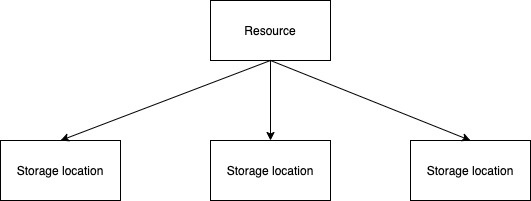
The Integration API supports uploading a resource (e.g. csv or SQLite database file) to Dais. This resource is then mapped to a storage location such as File Manager. The API supports writing a resource to multiple storage location(s).
How to get access
API key requests should be directed to the email: daissupport@bcg.com
Include the following template:
- Subject: Integration API key request
- Requestor: Email address
- Approver (PL): Email address
- Dais AppID(s): xxxxxxxx
- Case Code: Valid BCG Case Code
- Lighthouse Case: Yes/no
- Business Case: Data source/proposed data set (size)/usage explanation
Once the request has been approved the requestor will receive the API key via email.
How to use it
- In the above process the following items should be resolved:
- API key
- App ID
- The resources name(s) you want to create.
- How those resources should map to a storage location (such as a path in File manager)
- Perform your POST request with your data. We have two example methods of how to do this:
- Postman
- Curl
Use case
The API is designed to be able to upload external data sources for consumption in Dais. This could be a csv file or a SQLite database file as an example.
The API is designed for few larger resources over many smaller resources.
Capabilities
- Upload of a single file per request. Directory uploads are not supported
- Zero size files supported
- Resources are scoped to an API key. This may require safely sharing a key between a team to allow multiple users updating the app's resource.
- Datatype support: binary/SQLite
Limitations
- Resources are NOT versioned. If a resource is uploaded twice the previous copy will be over written.
- Requests will be throttled to one per second.
- Request size - 4 Gb
- Timeouts - 5 minutes
API
The Integration Service currently supports a single API endpoint:
/integration/v1/resources/<resource-id>
Where resource-id represents the identifier of the single object resource you wish to publish to.
POSTing to this endpoint will create new file() in the appropriate storage locations if they do not already exist, or will overwrite file(s) in the storage locations if they do.
The endpoint accepts multi-part form data and a Bearer token for authorization.
An example of this could look like:
curl --location \
--request POST 'https://<dais-cluster>/integration/v1/resources/<resource-name>' \
--header 'Authorization: Bearer <api-key>' \
--form 'data=@<file-path>'
Where:
- dais-cluster: is the cluster your project is on, such as "creator.gamma.bcg.com"
- resource-name: is the name of your resource. This can also include a directory path such as: "dirOne/dirTwo/resourceName"
- api-key: is your API key provided by the Dais team.
- file-path: is the path to the file on your local system.
Responses
- 200 - Success
- 400 - Invalid data
- 401 - Unauthorized publish
- 415 - Unknown data type
- 500 - Publish error